
1Before you start
Your website is www.rsoluteinc.com. It runs on Wix. You read your enquiries and see your website visits in the Wix dashboard, the control panel behind your website. We look after the pages and the design.
You can do yourself
- Read enquiries from brands and from people who want to join your team
- Reply to them
- Find a person in your contact list
- Keep notes and follow-up reminders on each person
- Keep your business details up to date
- See how many people visit your website
We do for you
- Text and photos on the pages
- Team, Careers and Track Record updates
- Page design, layout and the phone version
- Google search settings
- Your domain and team access
The pictures in this guide come from your own Wix dashboard. Red numbers point to the button each step talks about. Tap any picture to make it bigger.
2Log in to your dashboard
- Open the invitation email from Wix and click Accept. Always log in with this same email address.
- Go to www.wix.com and click Log In.
- Open Rsolute Inc. You are now on your dashboard.
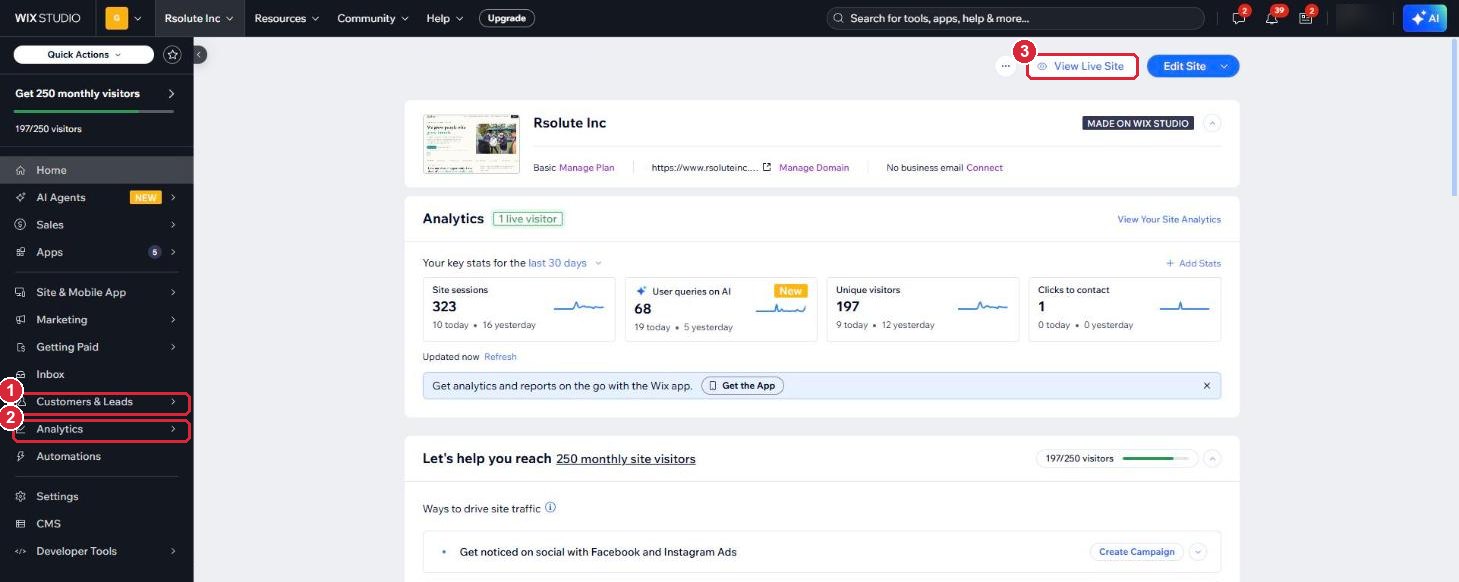
- 1Customers & Leads: your enquiries and contacts.
- 2Analytics: how many people visit your website.
- 3View Live Site: see your website the way visitors see it.
3Read your enquiries
Brands and people who want to join Rsolute both use the same form on your Contact page. Every message is saved in your dashboard.
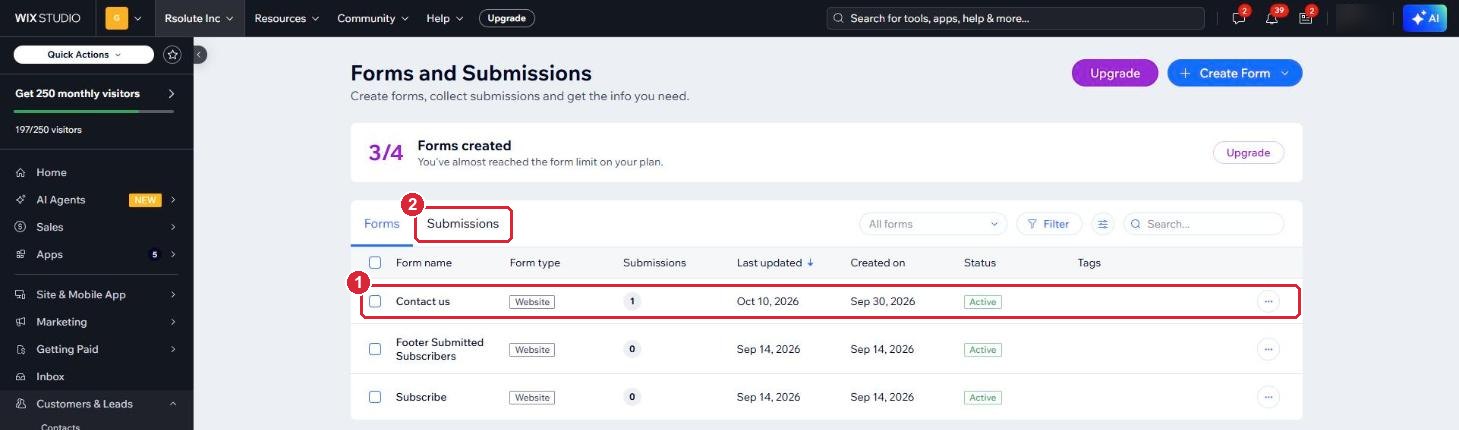
- On the left, click Customers & Leads, then Forms & Submissions.
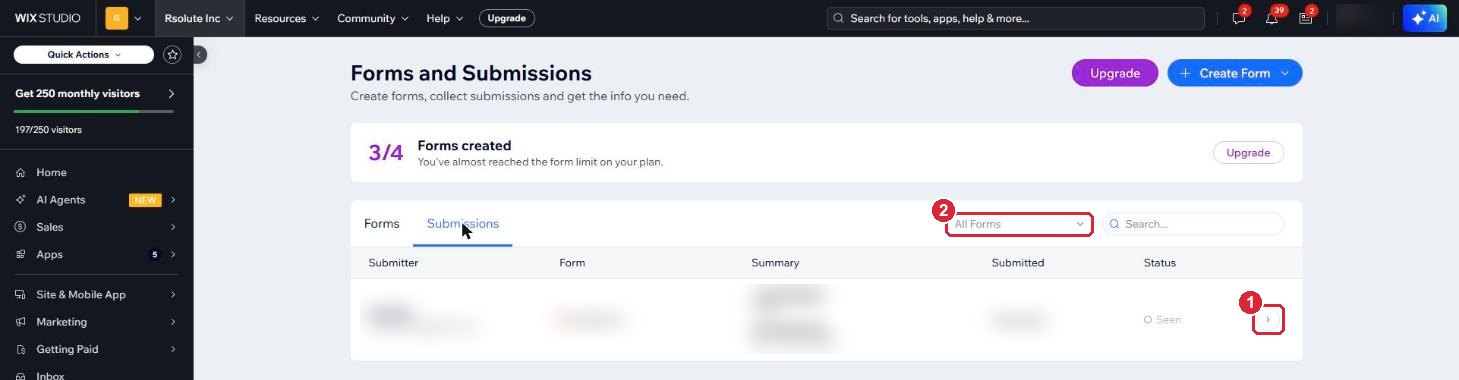
- Click the Submissions tab.
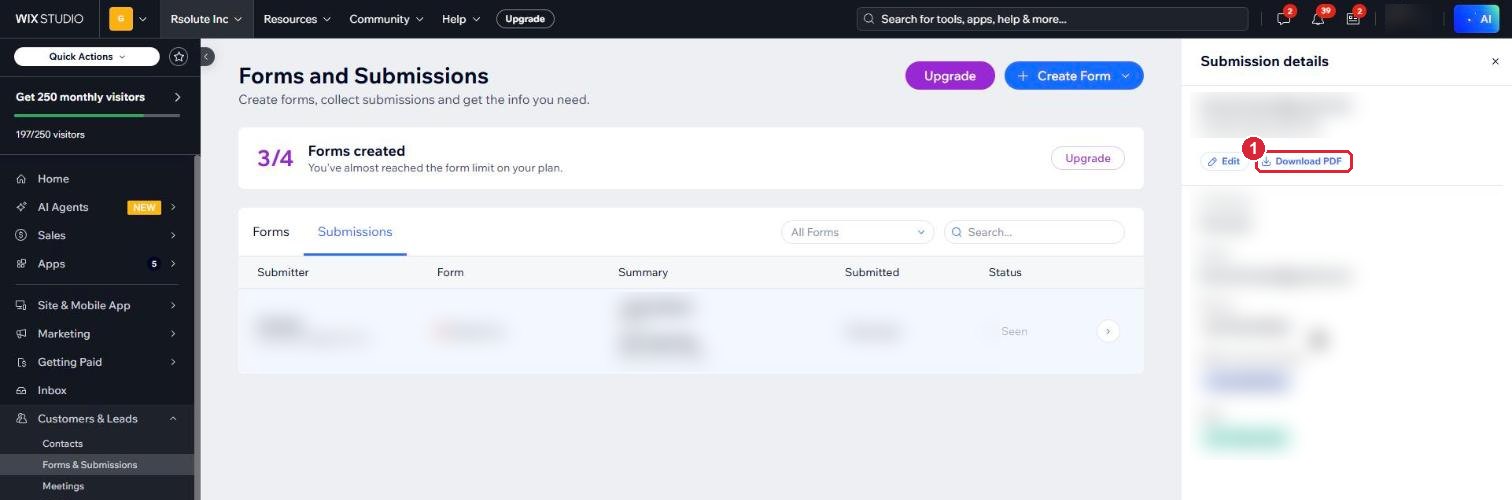
- Click the arrow at the end of a row to open the enquiry: name, email, phone, when they can start and their age group.
4Reply to an enquiry
Each new enquiry also sends you an email alert called "Contact us got a new submission".
- Open the alert email.
- Click Reply in your email. Your answer goes straight to the person who wrote in.
- If you prefer to call or WhatsApp, use the phone number in the enquiry.
5Your contacts
People who send you an enquiry are saved in your contact list, so you can find them again later.
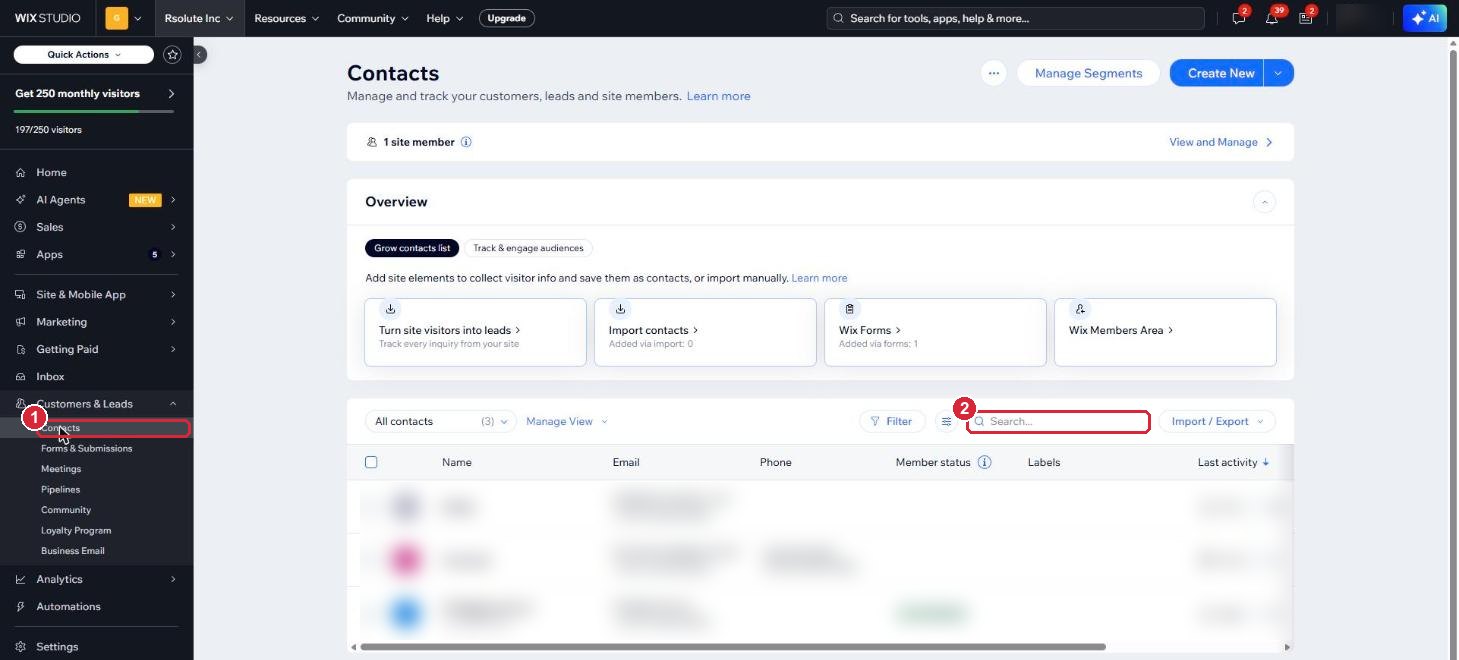
- On the left, click Customers & Leads, then Contacts.
- Use the search box to find a person.
Keep notes on each person
Click a person's name to open their page. Everything you add here is private to your team.
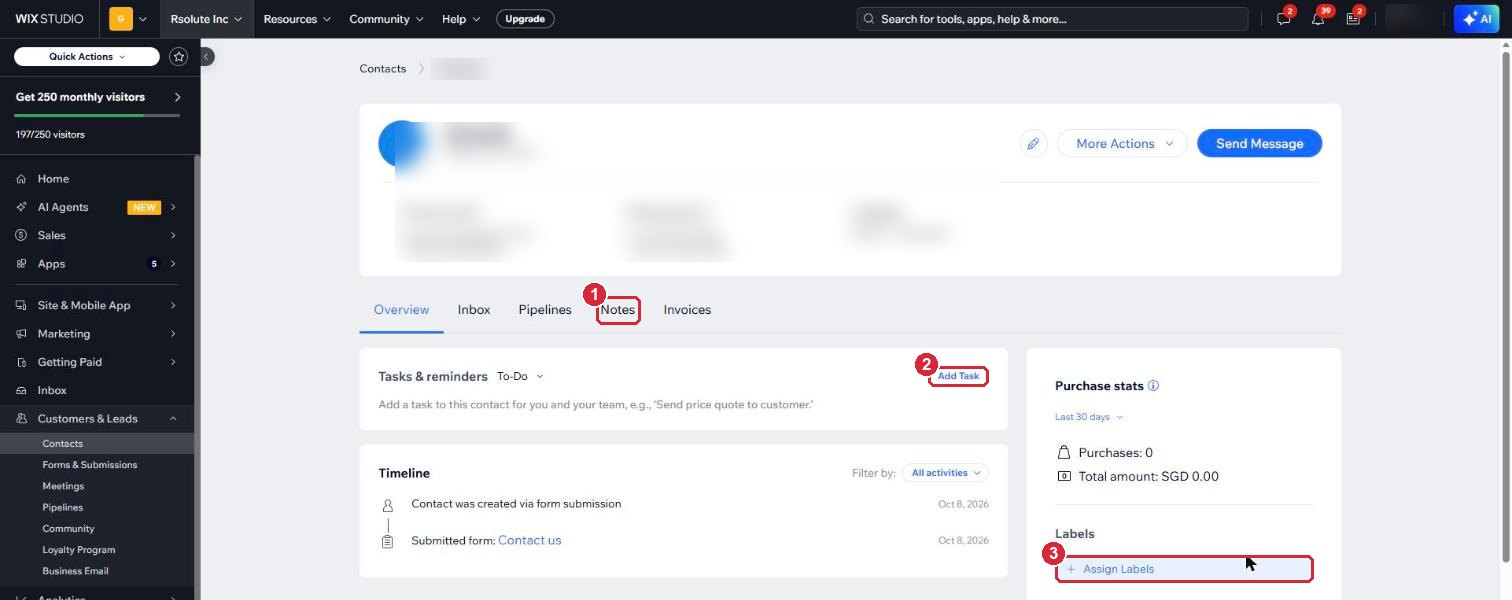
- 1Notes: write down what was said after a call or an interview.
- 2Add Task: set yourself a reminder, for example "Call back on Monday".
- 3Assign Labels: tag the person, for example Applicant or Brand, so you can filter your list later.
6Your website visits
- On the left, click Analytics.
- Choose the period you want to see, for example the last 30 days.
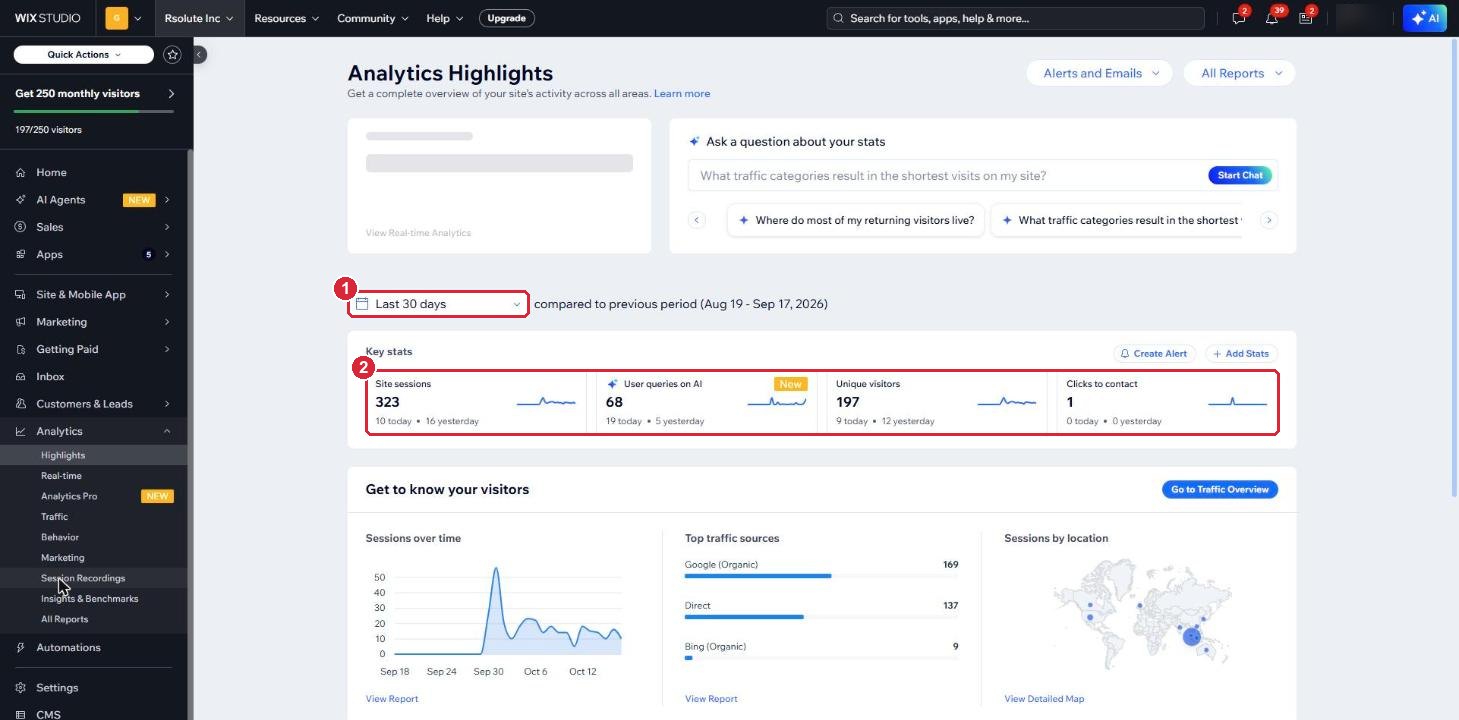
- 1Date range: the period you are looking at.
- 2Key stats: site sessions is the number of visits, unique visitors is the number of different people, and clicks to contact counts clicks on your contact details.
Top traffic sources, just below, shows how people found you, for example through Google.
We have also connected your website to Google Analytics and Google Search Console, and we keep an eye on them for you.
7Your business details
Your company name, logo, short description and address are kept in one place. Wix uses them in your emails and its other tools.
- On the left, click Settings, then Business Info.
- Change what you need, then click Save at the bottom of the page.
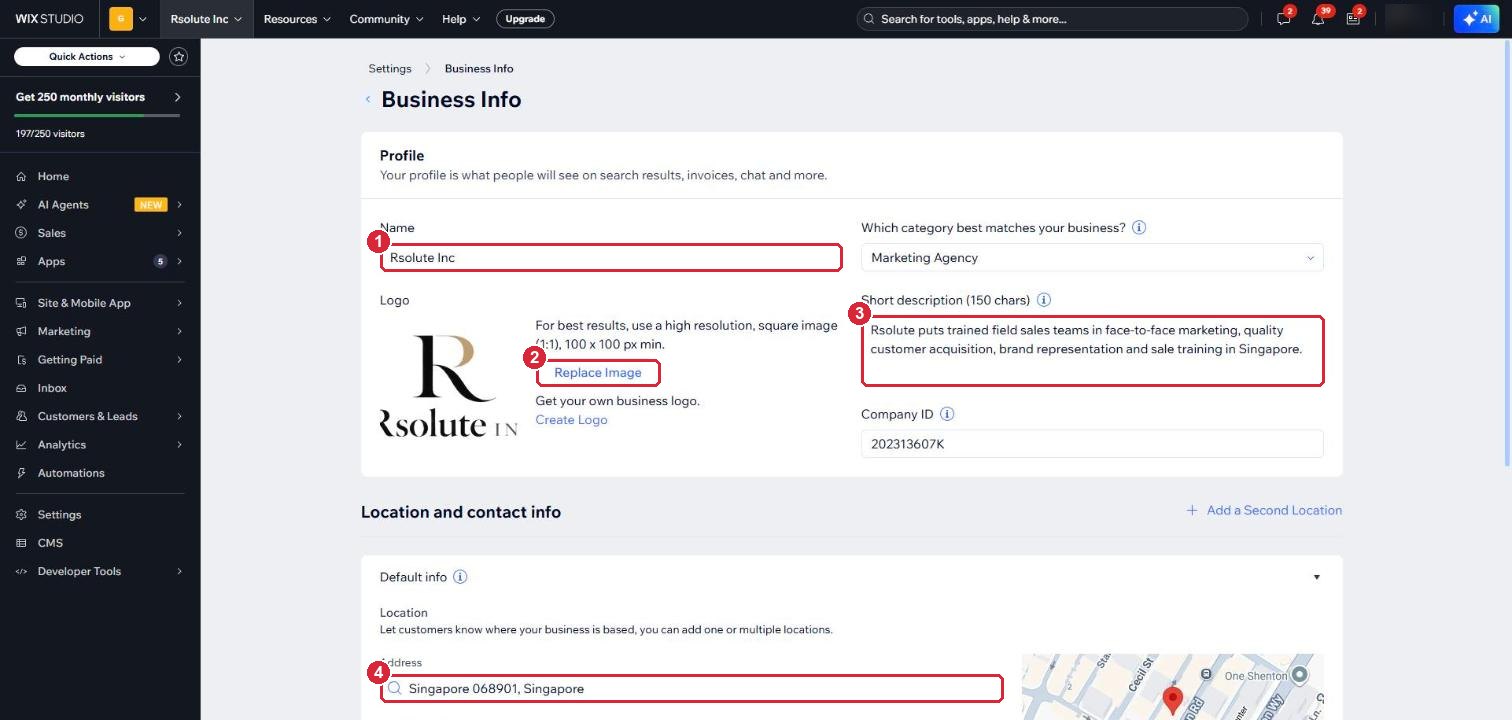
- 1Name: your company name.
- 2Replace Image: your logo. Use a square image.
- 3Short description: one or two sentences about Rsolute, up to 150 characters.
- 4Address: your office address.
8What we look after for you
Send us a request for anything outside your enquiries and visits, for example:
- Changing text or photos on a page
- A new team member, a new role on the Careers page, or a new result on Track Record
- Design, layout or how a page looks on phones
- New pages, menu items or buttons
- Google search settings
- Your domain, or giving a colleague access to the dashboard
Tell us the page and what you want changed. A screenshot helps.
Send a website support request9Good habits
- Check your enquiries at least once a day, even if you have not seen an email alert.
- Reply to every enquiry, including people who are not a fit, so they leave with a good impression of Rsolute.
- Do not delete or rename the Contact us form. Your email alert is linked to it.
- After we make a change for you, click View Live Site and check it looks right.
- Keep your Wix login to yourself. Ask us to give a colleague their own access.